Getting Ready for Semester 1 Classes
The following provides some information to help you prepare your students for muddy cards.
1. Setting up an alternate survey for students to submit muddy cards (IMPORTANT/COMPULSORY)
As part of our ethics approval, we need to provide students the option to completely opt out of using the system (including the Canvas page we set up for this unit). To do this, please duplicate the Microsoft Form here.
When creating this link, please make sure to set the settings to “anybody can respond”:
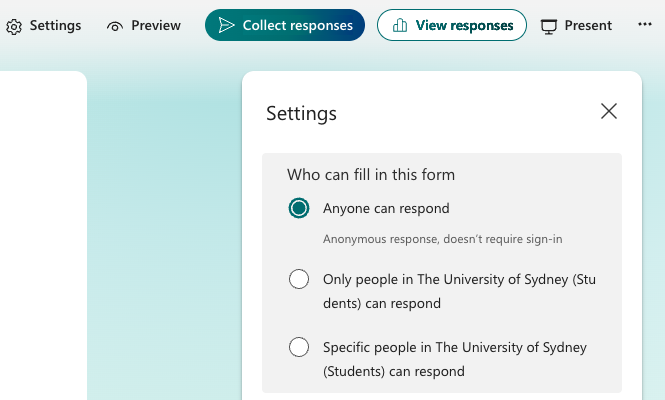
(As you are likely setting this up on a staff account, the default setting is to only let other staff respond to the form)
We suspect that not many students will fill out this form, but we need it to be made available. Once you have set up the form, you will need to include the form link in the document in step 2 below.
2. Letting your students know about the study (IMPORTANT/COMPULSORY)
To let your students know about the study, please post the message in the document here to your cohort. This is an important part of our ethics, as it is important that the students are made aware of the study. We suggest posting this as either a Canvas or EdStem announcement (which should send an email to the students).
In the document, please update the unit of study to your unit and place the form URL you set up in step 1 at the indicated position.
3. Explaining credit for your unit
Please make sure you explain to students how credit for muddy cards is attributed in your unit.
4. Optional slides
To make implementing muddy cards as easy as possible for your unit, I have put together optional lecture slides you can add to your lecture content.
Please click here to get slides that generally explain to students how to submit their muddy cards.
In addition, I have created lecture slides with QR codes that, for each weekly muddy card submission, will take your students directly to the muddy card to complete. They can be found here for each unit, respectively:
If you would rather just access images of the QR codes, they can be found here for each unit, respectively: